Instructions for AI integration gives elaborate instructions for Claude. I prefer Gemini. Examples provided appear to be specifically for Claude so how do I use Gemini instead?
note the instructions in brackets below. Claude, Claude, Claude
The Gemini CLI is a terminal tool that lets you interact with Gemini AI directly in your command line. To install it on a Windows PC, press the Start key, open Command Prompt or PowerShell, type npm install -g @google/gemini-cli (requires Node.js), and run gemini to launch and log in with Google. Next, download appcontrol-mcp.exe from the GitHub releases to a folder like C:\MCP\appcontrol-mcp.exe while keeping the AppControl app running with MCP API enabled. Finally, inside the Gemini CLI interface, type: "Help me configure and connect the local AppControl MCP server executable at C:\MCP\appcontrol-mcp.exe to monitor system history and security events."
Were you able to get it to work?
honestly speaking, haven’t had time to try it and that I do regret. Thank you for asking. When I can, I will give an update. thank you again for the support.
I appreciate your attention and instructions. Sadly, instructions are over my head. What do you mean (requires Node.js)? I don’t even know what that is. Is that a moot point?
Once I get this CLI tool installed, I give it the command ‘gemini’ and then log in to Google. Then download appcontrol-mcp.exe from the GitHub releases to a folder like C:\MCP\appcontrol-mcp.exe from where and how??
then back in CLI, type: "Help me configure and connect the local AppControl MCP server executable at C:\MCP\appcontrol-mcp.exe to monitor system history and security events."
I think you mean type in that quote literally … quotes and period. Right?
please clarify the Node.js concern, from where I get the download Github item, and include quotation marks and period in the command. Thank you again for the help.
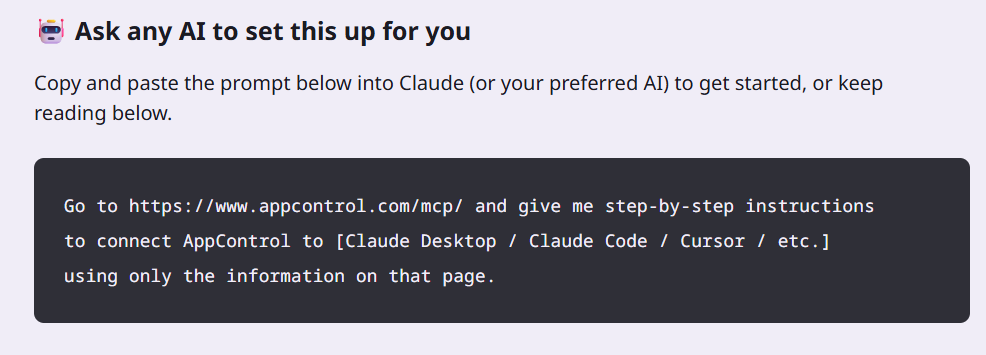
On our MCP page we have this prompt: “Go to AppControl MCP Setup (Claude + AI for Windows PC Monitoring) and give me step-by-step instructions to connect AppControl to [Claude Desktop / Claude Code / Cursor / etc.] using only the information on that page.”
If you copy/paste that into Gemini, does it help you set it up? It may be the best way.
What is an MCP page?? Sounds to me you are suggesting I use instructions for Claude to set up for Gemini. Is that logical?? I saw the instructions for Claude. Unfortunately no such instructions for Gemini which is what brought me here to this forum. I am no expert on this project. I would just like to see instructions like that for Claude but for Gemini. I am obviously missing something, because none of this makes sense to me. Sounds to me like it’s about 3 steps to have AppControl analyze my computer with Gemini AI but I can’t seem to obtain those instructions. No idea where to go from here.
Sorry for the confusion. Please go to AppControl MCP Setup (Claude + AI for Windows PC Monitoring) in your browser.
On that page there is a section “Ask any AI to set this up for you”.
Add “Gemini” there and remove any Claude references (sorry, my mistake). Then Gemini should help you set it up based on how it works currently.
We will improve instructions like this on our website revision so Gemini is better included. At the time we made the page it was not easy to make our MCP work with Gemini. My apologies.
Thank you for the further clarification. I will try that approach and thank you for your patience with me.
EDIT:
What a horrible experience. I took your advice. Spent hours not sure what I was doing except following instructions … ended up installing Python and about 7GB of other ancillary utilities. Kept going until I got to:
That error is why the Google sign-in didn’t work. Google stopped serving Gemini CLI to individual accounts—including free, AI Pro, and AI Ultra—on June 18, 2026. Reinstalling or trying another personal Google account won’t fix it.
Your options are:
- **Use Gemini CLI with a paid Gemini API key** or a Gemini Code Assist Standard/Enterprise license.
- **Switch to Antigravity CLI**, which Google directs individual users to use instead.
One important catch: the AppControl page’s setup instructions are specifically for **Gemini CLI**. I can’t confirm from that page alone that its AppControl MCP connection works with Antigravity CLI, so don’t assume the same configuration will work there.
My advice: If you want AI to examine your computer system and offer advice, forget it. Maybe even uninstall the APPCONTROL product as I don’t really see its advantage other than offering this ‘AI system examination’ concept which doesn’t work … with the offered GEMINI approach at least. I can only hope I can uninstall all the junk I have ended up with … about 7GB I think. Been screwing around with computers since before Bill Gates got a drivers license. I don’t call myself an expert, but I have never walked into such a freekin mess.
Thank you for your attempts to assist. The entire thing fell far short of even learning anything. Freekin Horror Movie. 
Sorry for the issue. We are planning a major update that will be out in around 30 days, and at that time I will add specific Gemini instructions.
Back when AppControl MCP came out, I looked at the options and everything except Claude looked beyond me! 
I decided to try it with Claude and the process was pretty smooth and the integration works surprisingly well. I can do plain-language queries related to my computer and Claude gets data from AppControl.
Even if your preferred AI is Gemini, you might want to try using Claude for this.
I did a bit of a presentation at my user group: https://opcug.ca/qa_recordings/20260527_PowerPoint.pdf (the AppControl part starts at slide 46).
If you want the audio to go along with the slides: https://opcug.ca/qa_recordings/20260527_Audio.mp3 (the AppControl part starts at about 46:50)
Hope this helps.
I really do appreciate your efforts to help. Looking forward to that update.
thank you for your input. I will keep it all in minde.